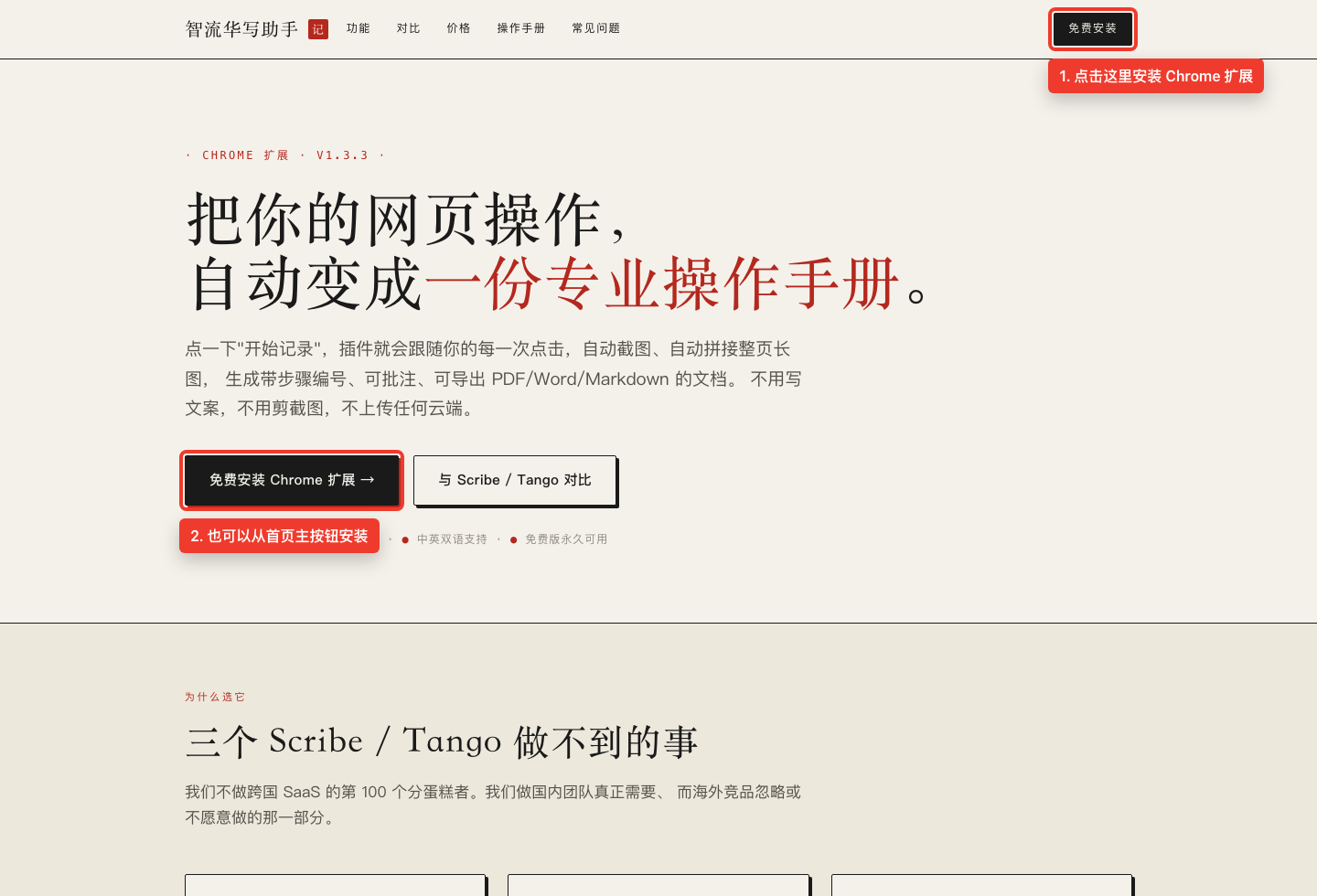
1. Install the Extension
Open the website and click “Install Free”. On the Chrome Web Store page, click “Add to Chrome”. After installation, pin HCZN Writer to the browser toolbar for easier access.
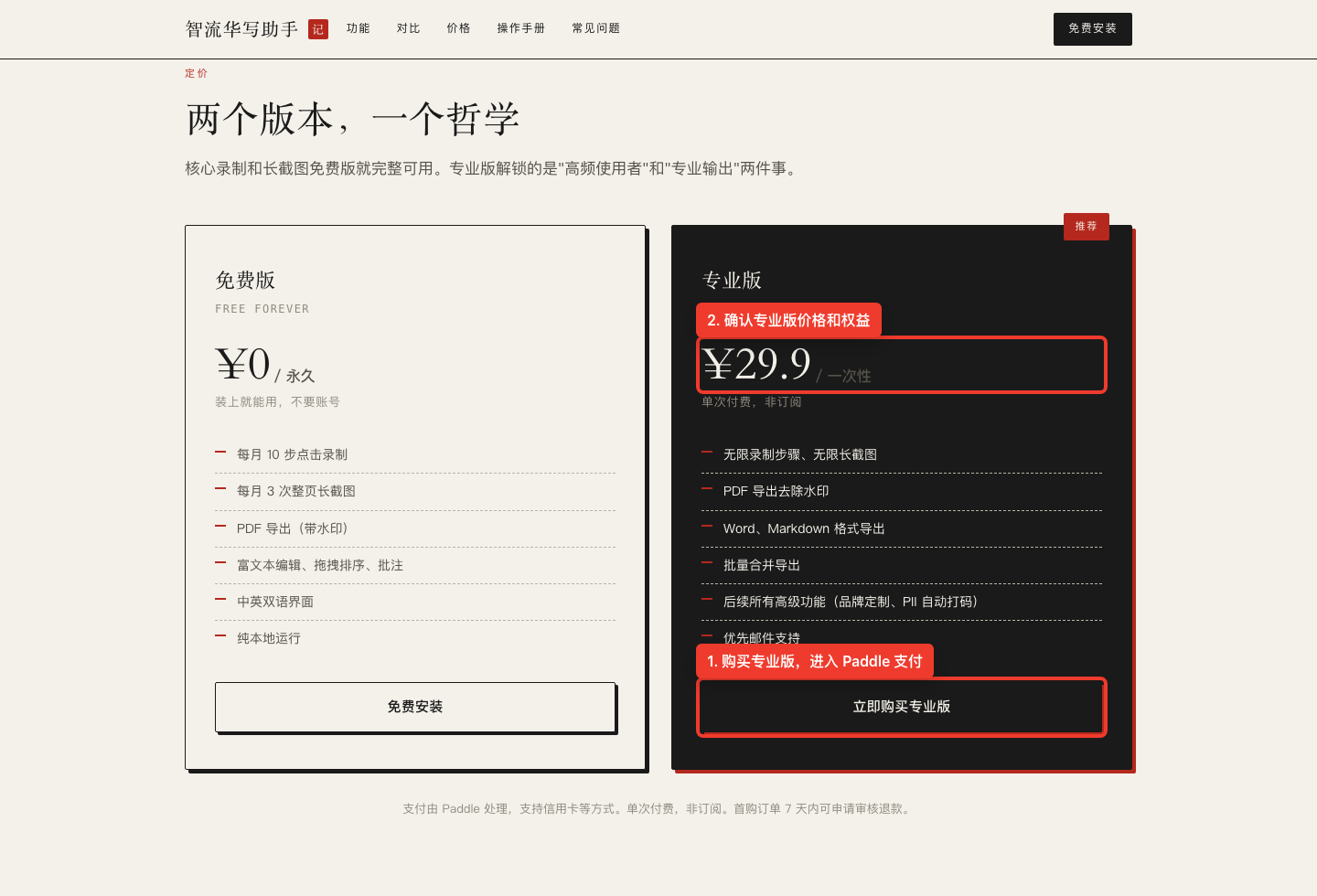
2. Buy Pro
Go to the Pricing section, confirm the Pro price and benefits, then click “Buy Pro with Paddle”. Complete payment in the Paddle checkout window.
3. Retrieve and Copy Your License
After payment, the page redirects to the license retrieval page. If the transaction ID and email are filled automatically, click “Retrieve license”. Otherwise, enter the Paddle transaction ID and purchase email manually. Copy the activation code once it appears.
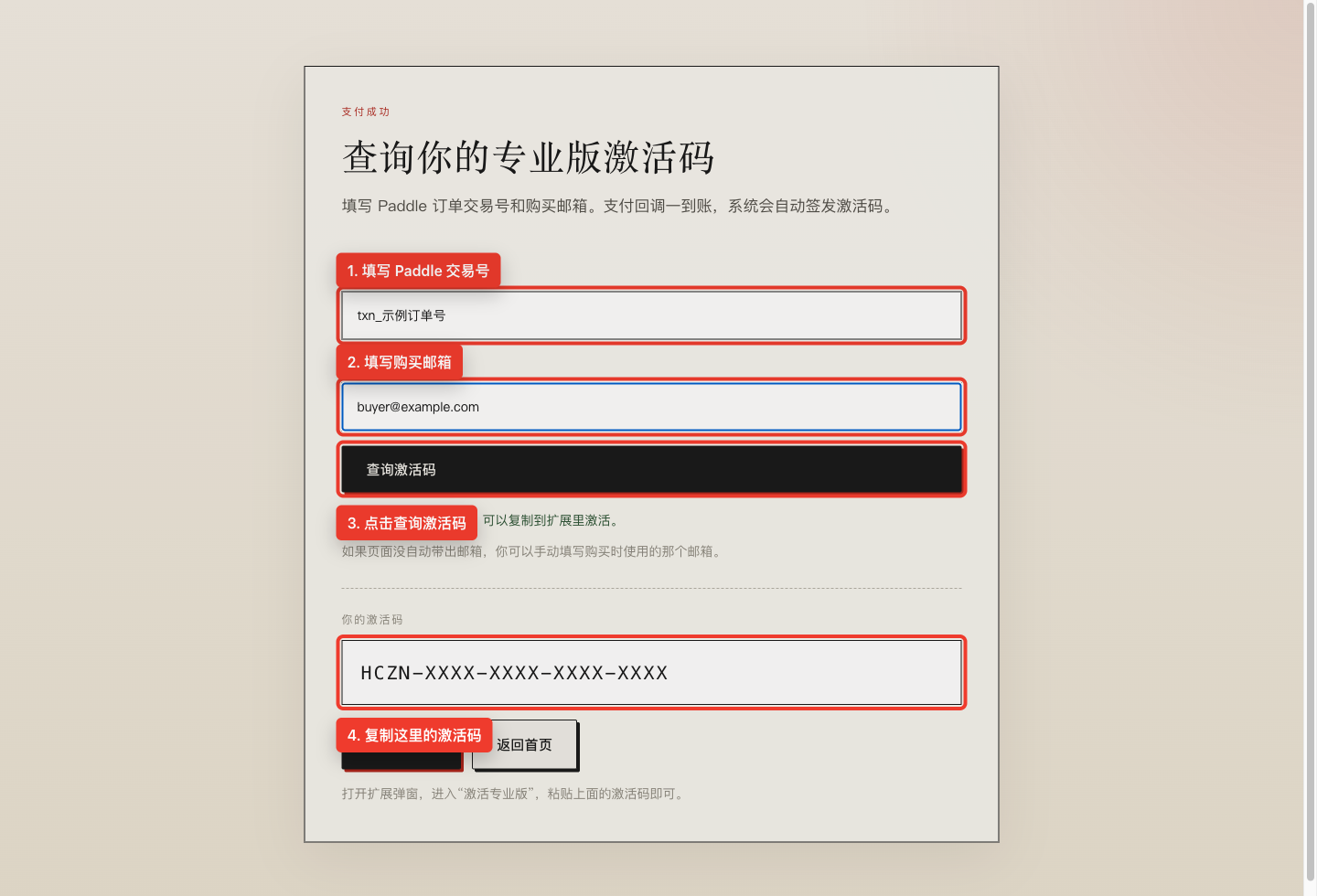
The license usually appears within a few seconds. If it is not ready, wait 1-2 minutes and try again.
4. Extension Popup
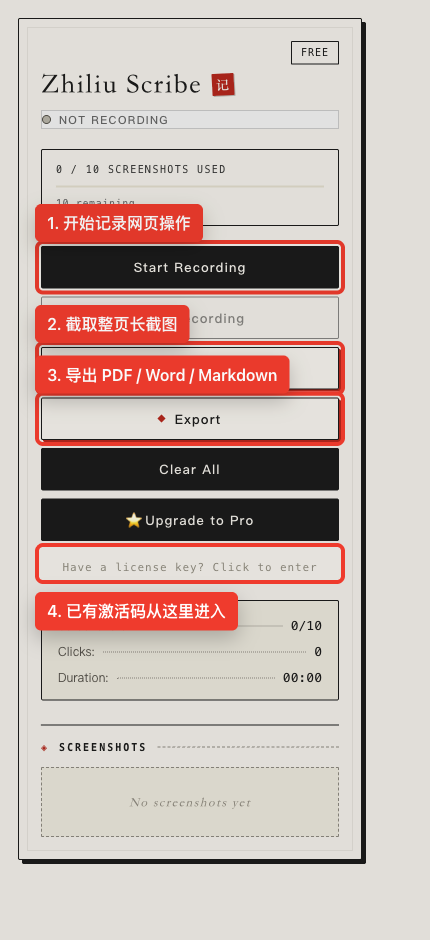
Click the HCZN Writer icon in the Chrome toolbar. The main actions are Start Recording, Full Page, Export, and the license activation link.
5. Activate Pro
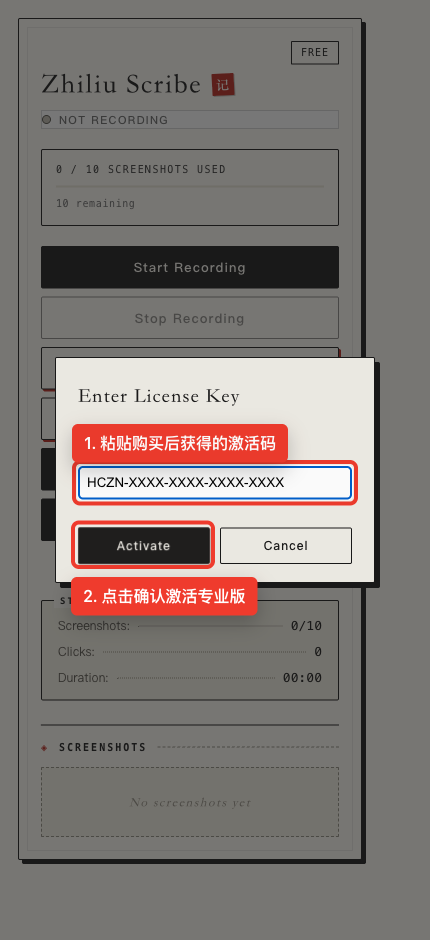
Click the license activation link, paste your activation code, then click Activate. Once activation succeeds, the popup switches to Pro status and free-tier limits are removed.
6. Record a Workflow
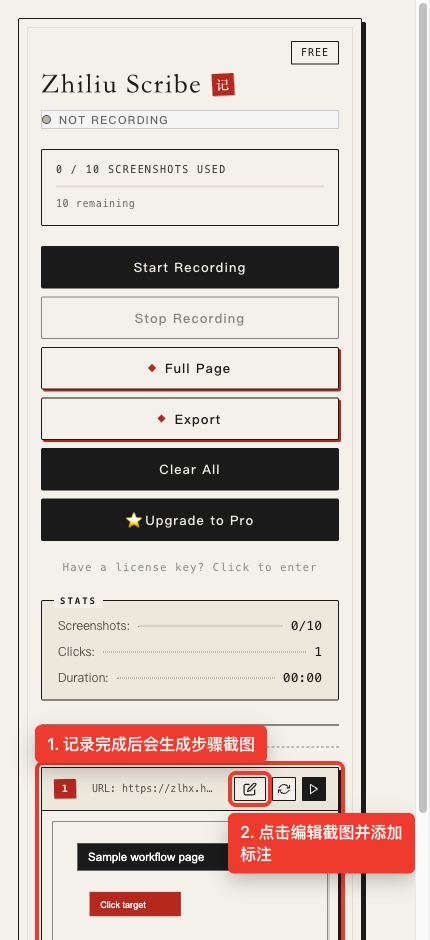
Open the page you want to document, click Start Recording, and perform the workflow normally. When finished, click Stop Recording. The extension creates step screenshots in the popup. Use the edit button beside a screenshot to open the editor.
7. Annotate Screenshots
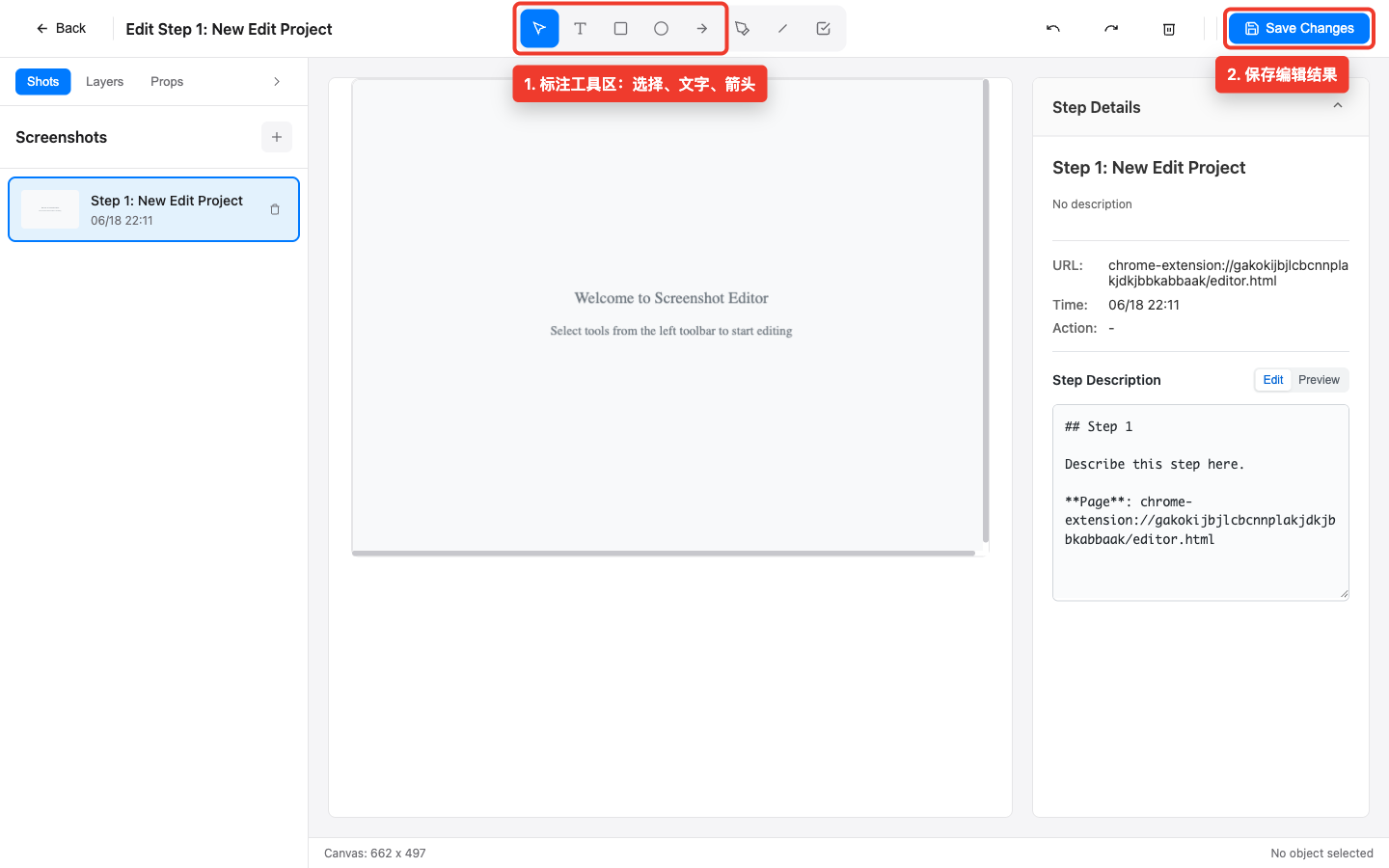
In the editor, use select, text, arrow, rectangle, circle, and line tools to mark key areas. Keep each screenshot focused with only the most important annotations.
8. Export the Manual
After reviewing all steps, return to the popup and click Export. Choose PDF, Word, or Markdown. Free PDF exports include a watermark; Pro removes the watermark and unlocks Word, Markdown, and batch export.
9. FAQ
Payment succeeded, but no license appears
Open https://zlhx.hcznai.com/en/order/ and enter your Paddle transaction ID and purchase email. If it still does not appear, email jiangming@hcznit.cn.
What controls the display language?
The extension follows your Chrome browser language. The website also routes automatically based on browser language.
Is workflow data uploaded?
No by default. Screenshots, steps, and edits stay in your browser. Pro activation only sends the license code and anonymous device fingerprint to validate licensing.